Revision/Update Information:
This manual supercedes the DECUServe User Guide, Version 1.0a.
Software Version:
DECUServer User Guide V1.1b
VAX/VMS V5.5-2
Vax Notes V2.2
OneKey V5.61
DECUServe Customer Service: (978) 952-6957 (This number will change on 16-Oct-1998 to a number unknown at this time)
TAY2-1/F8 Modem Numbers: see page 3-1
153 Taylor Street
Littleton, MA 01460-1407
This material is not copyrighted. You may make as many copies as you wish. However, if you make copies, we recommend that you copy the entire manual. If you must abstract portions of the document for your own purposes please include a reference to the original source (DECUServe).
The information in this document is subject to change without notice. Digital Equipment Corporation, DECUS and the DECUServe Executive Committee assume no responsibility for any errors or omissions in this document.
DECUServe User Guide V1.1
The following are trademarks of Digital Equipment Corporation:
| ALL-IN-1 | CDA | DECnet |
| DECUS | DECwrite | Digital |
| EDT | PDP-11 | RT-11 |
| ULTRIX | VAX | VAX Notes |
| VAXmail | VAXstation | VMS |
| VT | WPS | WPS-PLUS |
IBM is a registered trademark of International Business Machines Corporation.
Mac is a registered trademark of Apple Computer Inc.
MNP is a registered trademark of Microcom, Inc.
PostScript is a registered trademark of Adobe Systems, Inc.
UNIX is a registered trademark of UNIX System Laboratories, Inc.
XENIX is a registered trademark of Microsoft Corporation.
| Contents | Index |
Welcome to the electronic community of DECUServe, ``Where DECUS meets Daily''!
You have joined a proud group of dedicated volunteers and users who use the DECUServe conferencing system as an integral part of their work and education. We hope you enjoy your time with us and derive many hours of savings for each hour you spend. We also hope that you will contribute your own experiences as you become more familiar with our system and its members.
Access to DECUServe is provided only by subscription. If you are not already subscribed to DECUServe you can easily get a subscription form by following the instructions at the end of Chapter 13.
It is impossible to thank all the people who have helped put DECUServe together and keep it running day after day. They know how valuable their efforts have been each time someone's question is answered, a new programming technique is described, or a new bug is reported. They will probably never know the countless hours that have been saved by the many people who learned something from the accumulated wisdom of the DECUS community. Thank you to all the volunteers and users of DECUServe.
The original version of this guide could not have been written without the help of Pierre M. Hahn, Donald E. Amby, Dale E. Coy, Linwood Ferguson, Sharon Johnson, Terry Kennedy, Fred Lobmeyer, Chris Rhode, and Fred Scholldorf. Version 1.1 of this guide was produced with the help of F. Arthur Cochrane, Pierre Hahn, Bob Hassinger, and Larry Stone.
This document is produced using VAX DOCUMENT. Final output of the printed version was generated on a Postscript printer. A Bookreader version of this document is also planned.
This guide is intended to be used in three ways:
Readers of this guide are expected to have a basic familiarity with computer systems including such concepts as logging in, accessing files, invoking editors and logging out. Familiarity with communications concepts such as local terminals, modems, and remote systems is desirable but not essential.
This guide is divided into three parts.
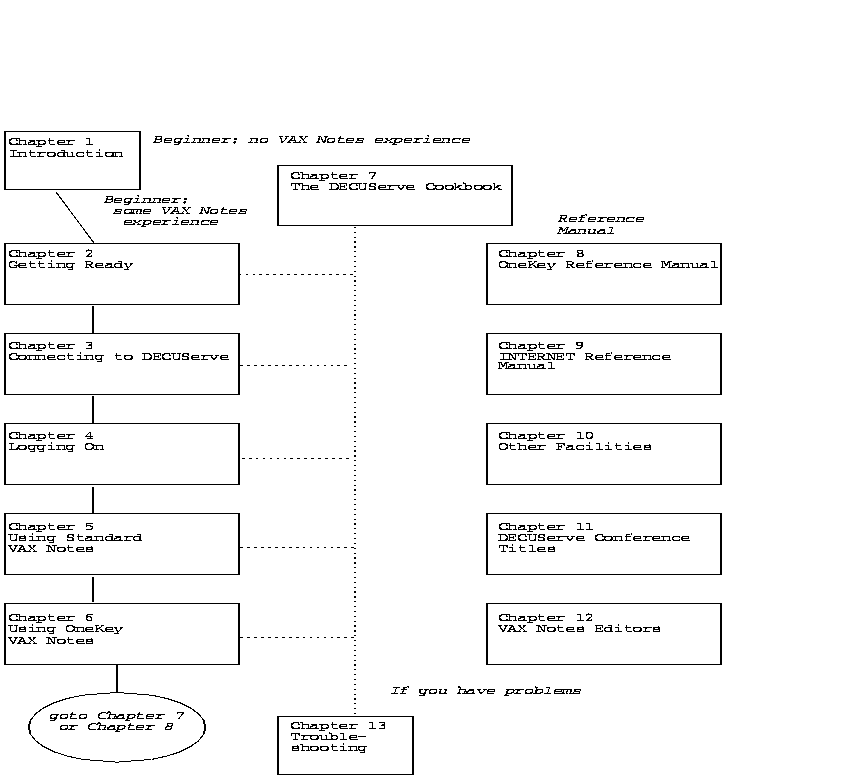
Part 1, composed of Chapter 2 through Chapter 6, is designed to get you started on the system quickly. New users of the system should read these chapters in sequence. By the time you finish Chapter 4, you have logged onto the system. By Chapter 5 you have explored some of the conferences on the system and may have entered note or a question of your own. In Chapter 6 you begin to learn advanced techniques for reading and searching conferences. If you have problems go directly to Chapter 13---Troubleshooting.
Part 2 consists of only Chapter 7---The DECUServe Cookbook. This chapter is an alternate way of learning how to use the system. By reading this chapter you explore the features of the system as a new user would from simple concepts to more complex ones, with each new concept building on what was previously learned.
Part 3 is composed of the Chapter 8 through Chapter 13 .
These chapters contain reference material or more detail on particular
aspects of the system. These are intended to be read after you have
mastered the basics. They may be read in any order.
1.2 Flowchart for New Users
The following flowchart is a guide to reading the chapters of this document.
Choose one of the tracks labeled Beginner. The distinction between a beginner with some VAX Notes experience and a beginner with no VAX Notes experience may not apply to you. You may simply prefer one style of presentation over the other. Leaf through a few pages of both the ``Cookbook'' (Chapter 7) and Chapters 2-- 6 before you decide which to read first.
Once you have mastered the basics by reading Chapters 2-- 6 or Chapter 7 (or both), read the remaining chapters in any order.
If you have problems with the system, please refer to Chapter 13 for help.
Figure 1-1 Chapter Overview
VAX Notes and the various editors on the system work best if you use a
Digital VTxxx or compatible terminal to access the system. The terminal
should be configured for XON/XOFF flow control (in both directions), 8
bit operation, no parity, 1 stop bit, and application keypad mode.
2.2 PCs and Macintoshes
There are many good VT200-series and VT300-series terminal emulators for the PC and the Macintosh. These programs allow your screen and keyboard to emulate most of the behavior of a VT-series terminal and typically use one of the PC COM ports or the Macintosh modem port to communicate.
Become familiar enough with your terminal emulator to understand how to set up the communication parameters such as flow control, baud rate, number of data bits, parity/no parity, stop bits, etc. Set these parameters as described in Terminal Equipment above.
Also, learn how your emulator maps the keys of your native keyboard
into the keypad and cursor control keys of the emulated terminal. Full
emulation of all VT-series special function keys is not absolutely
required, but basic support for cursor movement and control-key
functions is almost essential for effective screen editing and
navigation within VAX Notes.
2.3 Modems & Communication Equipment
DECUServe modems support a maximum communications speed of 14,400 bps (bits per second), as well as slower speeds such as 9600, 2400, 1200, and 300 bps. We recommentd that you use a minimum of 2400 bps to connect as slower speeds will cause delays when the screen is redrawn. Most asynchronous modems on the market today (or in the last several years) will be compatable with DECUServe. If you use a modem to reach any of the on-line services such as CompuServe or Prodigy, you should have no problems connecting with DECUServe.
Most DECUServe modems support V.42bis compression and the older MNP compression classes as well as the current error correction standards. Not all modem groups support all features - see Table 3-1, Public Telephone System Numbers or DECUSERVE_INFORMATION topic 12 for a full list of phone numbers and supported features.
If the discussion above sounds like gibberish, or you simply don't know what protocols your modem supports, try it anyway. Most modems of recent vintage are sophisticated enough to negotiate between themselves for the highest mutually compatible speed and most reliable form of connection.
As new standards evolve for even higher speed modems, you can expect
DECUServe to switch to newer modems supporting these new standards that
also support the speeds in use today.
2.4 Do you have your USERNAME and PASSWORD?
As part of your sign-on package you should have received a page giving your username and password. These will be required for you to log in to the system (once you have established a connection). Please locate them now.
If you have not registered you may read the remainder of these instructions to learn how to log in once you get your username and password. You can also log in to a special INFORMATION account where you can request a registration form. You can also obtain a registration form through Internet mail by following the instructions at the end of Chapter 13.
Please do not use anyone else's username and password. The members and management of DECUServe take the security of the system very seriously. Access to the system using anything other than your own username and password is a violation of the DECUServe canons of conduct and is strictly forbidden.
You may access DECUServe using the public telephone system and an asynchronous, auto-dial modem. Simply dial one of the telephone number groups listed in Table 3-1 depending on the speed of your modem. If all lines in your preferred group are busy you will hear a busy signal and you should try one of the other groups.
| Speeds | Number | Description |
|---|---|---|
| Up to 28,800 bps | (978)952-2540 | subscriber dial in access (changing 16-Oct-1998) |
| Up to 28,800 bps | (800)521-8950 | to request information or to report problems |
| Voice help | (978)952-6957 (Changing 16-Oct-1998) | Customer Service Answering Machine |
Note that the 800-number lines are to be used only to request
information or report problems. These telephone access lines do not
allow you to login using your normal username and password without
prior authorization.
3.2 Connecting via INTERNET
If your host computer is connected to the Internet or you have TELNET
access to the Internet through a terminal server you may be able to
access DECUServe through TELNET terminal emulation.
3.2.1 Internet Terminal Emulation
To connect to DECUServe over the Internet, use your local TELNET client or terminal server to connect to the Internet host EISNER.DECUS.ORG (IP address 192.67.173.2).
For example, on a local UNIX workstation, you might type the command:
telnet eisner.decus.org |
If your system is not configured to use the Internet Domain Name System (DNS) to perform host name to IP address resolution, you may need to access the DECUServe system directly by IP address.
To establish a TELNET connection to DECUServe by IP address, you might type:
telnet 192.67.173.2 |
However, you should be aware that the IP address for DECUServe is subject to set wrap change.
Once a connection has been established to the DECUServe system, you will be prompted for your username and password just as if you had dialed in.
For additional information on using the Internet refer to Chapter 9
of this guide.
3.2.2 Other Internet Services
The DECUServe system also supports file transfer using the Internet
File Transfer Protocol (FTP) and electronic mail exchange using
Internet Simple Mail Transfer Protocol (SMTP). To learn more about
these facilities please refer to Chapter 9.
3.3 DECUServe POPs
Some DECUServe volunteers maintain DECUServe POPs (Points of presence). A DECUServe POP will typically consist of one or more dial-in lines to a system or terminal server maintained by the DECUServe volunteer from which you then Telnet to DECUServe. There may be a charge for using a DECUServe POP to defray the costs of operating it. Complete information on current DECUServe POPs can be found in DECUSERVE_INFORMATION topic 43.
If you have not yet established a connection between your equipment and
the DECUServe system please do so now. Refer to Chapter 3 if you
need help.
4.1 Username & Password
You must know your username and password to log in. It is best if you can commit them to memory, especially your password. If you are logging in for the first time please find the information sheet which tells you what they are.
Your username and password are for your use only. DO NOT allow your
account to be used by anyone other than yourself. DO NOT under any
circumstances give your password to anyone else. Violation of these
rules will cause termination of your account.
4.2 What to Expect
If you are logging in for the first time, see First-Time Options below.
When your modem has connected, press the RETURN key at intervals of one second to allow the system to determine the baud rate of your connection. One or two presses of the RETURN key are usually sufficient.
You are presented with the standard system notice and disclaimer.
You are prompted for your username (supplied in your welcome kit):
Username: J_NOTER |
Enter your username immediately after the prompt and press RETURN.
You are then be prompted for your password:
Password: |
Enter your password immediately after the prompt and press RETURN. Note that the password is never echoed. If you make a typing mistake before you press RETURN, you can press CONTROL-U to erase what you have entered so far and try again.
You have three chances to enter your username and password correctly. After the third unsuccessful login attempt the DECUServe system forces a disconnect.
If you have successfully entered your username and password you are
logged onto the system.
4.3 System Announcements
Please read the system announcements which are displayed immediately
after login. These give you important notices about upcoming system
changes, new conferences, and similar news.
4.4 First-Time Options
The first time you log into your account the system asks you to change your password. This is done to make sure that only you know the password to this account.
When the system gives you the following prompt:
New Password: |
type in at least 6 characters for your new password. (The characters you type are not displayed on the screen.) We recommend that you make your password longer than 8 characters. Ideally, use some combination of letters and numerals that does not appear in any dictionary and is not easily guessed.
At the prompt:
Verification: |
type in the same sequence of characters as you just typed. This is to
make sure that there were no undetected typing or communications errors
in your previous input.
The VAX Notes conferencing software supports various profile options which allow you to customize your environment. For example:
If this is your first login, the system automatically activates the New User Environment procedure (NUE) to help your setup your account profile.
In the questions that follow the system's default is shown in square
brackets. Press the RETURN key to accept the default or enter a new
value (followed by a RETURN) to change it.
4.4.2 Setting Your Personal Name
NUE prompts you to accept your default personal name or change it:
Please enter your personal name [John E. Noter]: |
This sets the name which appears along with your username in every note
you write.
4.4.3 Setting Your Preferred Editor
NUE prompts you to select your default editor for composing notes:
Enter your preferred editor EVE, EDT, TPU/EDT, TPU/WPS, TECO [EVE]: |
You can change your selection at any time using the SET PROFILE command in Notes.
There are five editors available. Brief descriptions of them are given in Table 4-1. Additional information is available in Chapter 12.
| EVE | This is the basic TPU based editor covered in the VAX Notes Quick Refernce Card. This is the default editor. |
| EDT | This is the standard VAX editor with line mode, keypad, and nokeypad modes. It is also available on some personal computers and PDP-11s. |
| TPU/EDT | This is the advanced TPU based editor with split screen and a keypad matching EDT, but without the line and nokeypad modes. |
| TPU/WPS | This TPU-based editor has a keypad similar to WPS and WPS-Plus. |
| TECO | This is a classic editor available on many platforms. |
Next, the NUE procedure automatically adds groups of VAX Notes conferences to your notebook based on your areas of interest. Your notebook is a file used by VAX Notes to keep track of which notes you have already read in public conferences.
For now, select your areas of interest as described by the system. It takes a few seconds after the VAX Notes banner appears to display this information. Later, as you become more familiar with the content of each conference, you can add or delete the conference entries from your notebook.
Refer to Chapter 11 for a list of conferences and their groupings.
You may invoke the NUE procedure at any time in order to select additional areas of interest. To do this, type the command:
$ ENVironment_update |
Only the first three characters are required.
Your initial conferencing environment has now been set up.
When this procedure exits, you may type the command to start VAX Notes and proceed with reading the information which is available:
$ NOTES |
| Next | Contents | Index |