| Previous | Contents | Index |
Every DECUServe user is limited in the amount of disk space that may be used through the VMS DISKQUOTA facility. Once your disk quota is filled, you will be unable to create or expand any files. To see what your quota is and how much of it you are using, enter the command:
$ SHOW QUOTA |
To avoid disservice to other users trying to send you electronic mail, the Mail utility has been configured with the EXQUOTA privilege which overrides your quota. You will receive all your mail even though you may have reached your disk quota. However, you will be unable to create any new files or expand any existing files until you delete enough mail or other files to reduce your disk usage below your quota.
To avoid you being denied access to VAX Notes due to having insufficient disk quota for your VAX Notes notebook, the notebook is owned by the system rather than by you. Some VAX Notes operation can cause rapid expansion of your notebook. DECUServe will periodically optimize your notebook.
DECUServe recognizes that occasionally you need short term scratch space that exceeds your disk quota. The MYSCRATCH facility has been provided to meet that need. Please see Chapter 10 for more information on this facility.
VAX Notes is a computer conferencing system in which discussions can be conducted between people in different locations and at different times.
VAX Notes discussions are organized into conferences. Each conference contains a number of topics. Each topic serves to set an agenda for the discussion which follows. Each topic may contain any number of replies. Each reply contains the textual response, question, or comment on the given topic from one of the conference participants. Topics and replies are referred to collectively as notes. A topic and all of its replies are called a discussion or thread.
Many people can participate in the same conference or even the same
discussion simultaneously. VAX Notes controls access to the information
and automatically assigns time stamps, sequence numbers, and authorship
to all updates. Similarly, VAX Notes enables users to participate in
discussions over an extended period of time by automatically keeping
track of which notes each user has already seen and presenting only
new, unseen information the next time they login. Also, old information
is always available on request so that users can review a discussion
already in progress or search a range of discussions for related
information.
5.2 Conference Structure
Each VAX Notes conference has a name, for example, DOCUMENT_PROCESSING or SOFTWARE_DEVELOPMENT, describing the general theme of the conference.
Each note within a conference has a two-level number, for example, 2.2, 6.0 or 356.17. Topics (the notes that set the agenda for a discussion) are numbered consecutively starting at 1 and incrementing by 1 for each topic (e.g. 1.0, 2.0, 3.0). Replies are numbered in the form n.m with m incrementing by 1 for each reply. For example, replies to topic 3.0 are numbered 3.1, 3.2, 3.3, ..., 3.9, 3.10, 3.11, .... You may randomly navigate through the this two-level hierarchy of notes by specifying a note number, or you may use the commands described below to select and read a note.
Each note also has a title and an author, and is
stamped with the date and time it was entered into
the conference. Each note may also be associated with one or more
keywords (usually assigned by the conference moderator and
usable by all members) or markers (assigned by you and only
visible to you). The title, author and date/time are displayed in the
header of a note when you read it and in the directory of notes for the
conference.
5.3 Your Personal Notebook
Each user of VAX Notes is automatically provided with a personal notebook.
The notebook is used by VAX Notes to maintain information about your environment:
Your notebook appears in your directory as the file named
NOTES$NOTEBOOK.NOTE. This file is maintained automatically by VAX
Notes. It may be modified only by using commands from within Notes. You
should not delete this file, attempt to edit it, or even type it out;
it is a special, binary-formatted file and it is not humanly readable.
5.4 Invoking VAX Notes
To invoke the VAX Notes utility, type the following command:
$ NOTES |
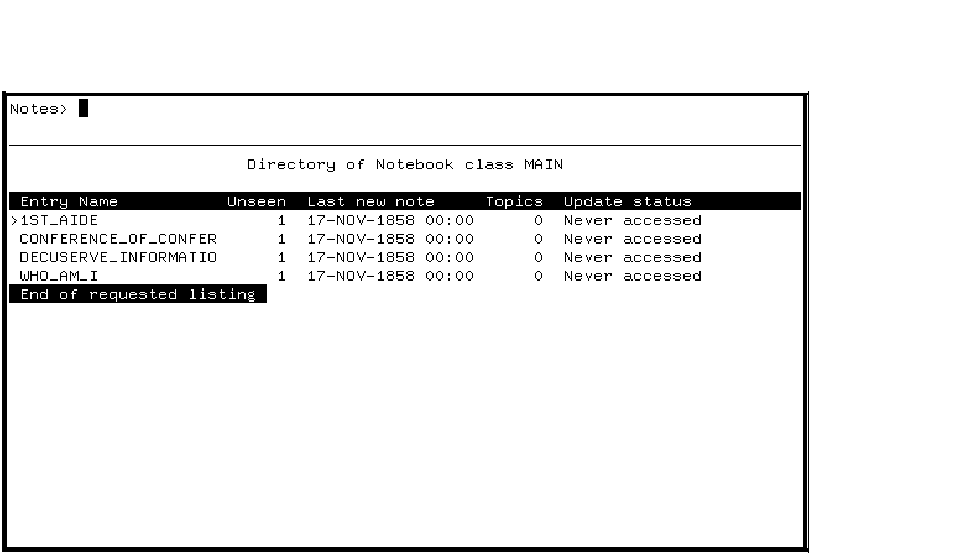
After you issue the NOTES command, your screen will clear and VAX Notes will display a directory of the conferences currently in your personal notebook as shown in Figure 5-1. (Your screen may show a different selection of conferences.)
Figure 5-1 VAX Notes Startup Screen
VAX Notes commands can be entered in two ways:
You can abbreviate commands to the fewest unambiguous characters. For
example, W is a legal abbreviation for the
WRITE command.
5.6 Getting Help
You can get help on VAX Notes commands by entering HELP at the Notes> prompt, like this:
Notes> HELP |
You can also get help on the VAX Notes keypad by pressing the HELP or PF2 key on your keyboard. VAX notes generates a display such as the one shown in Figure 5-2.
Figure 5-2 VAX Notes Keypad Help Screen
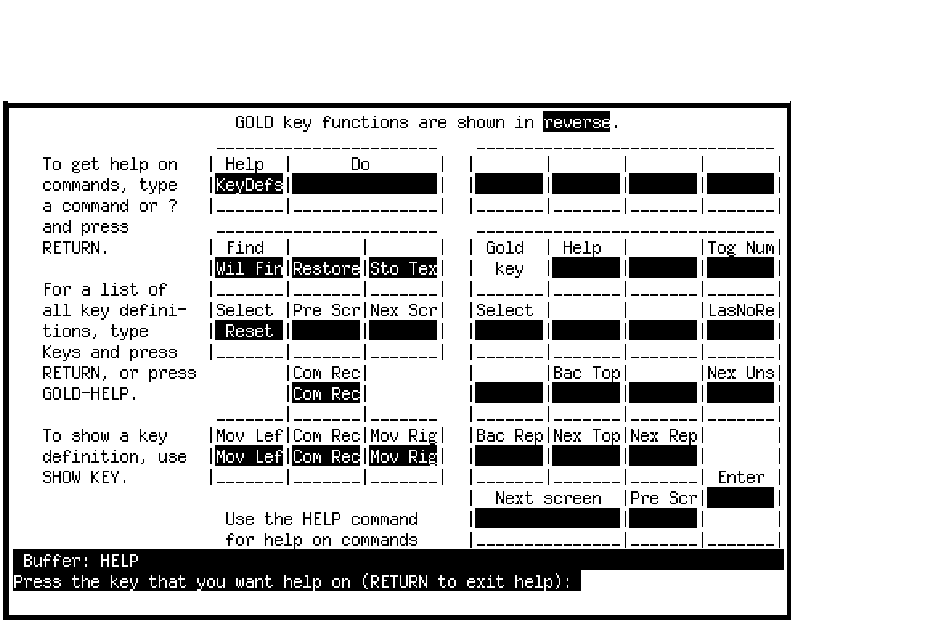
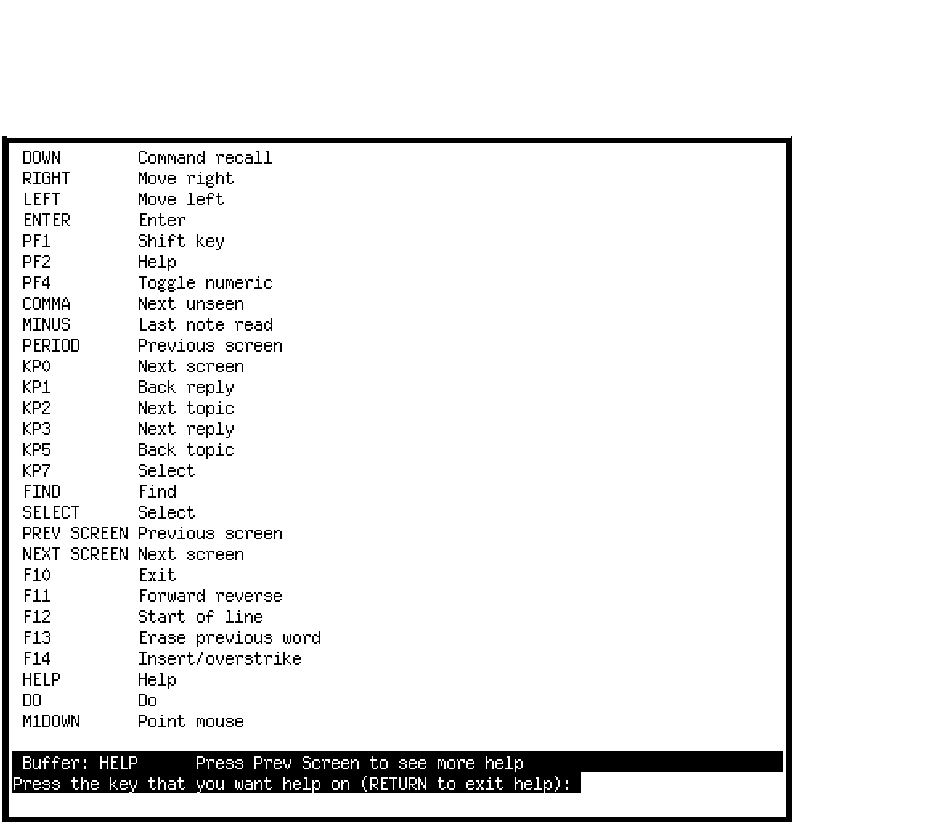
When the keypad diagram is on display, you can type ``keys'' and get a list of key definitions as shown in Figures 5-3 and 5-4.
Figure 5-3 VAX Notes Key Definitions, Part 1
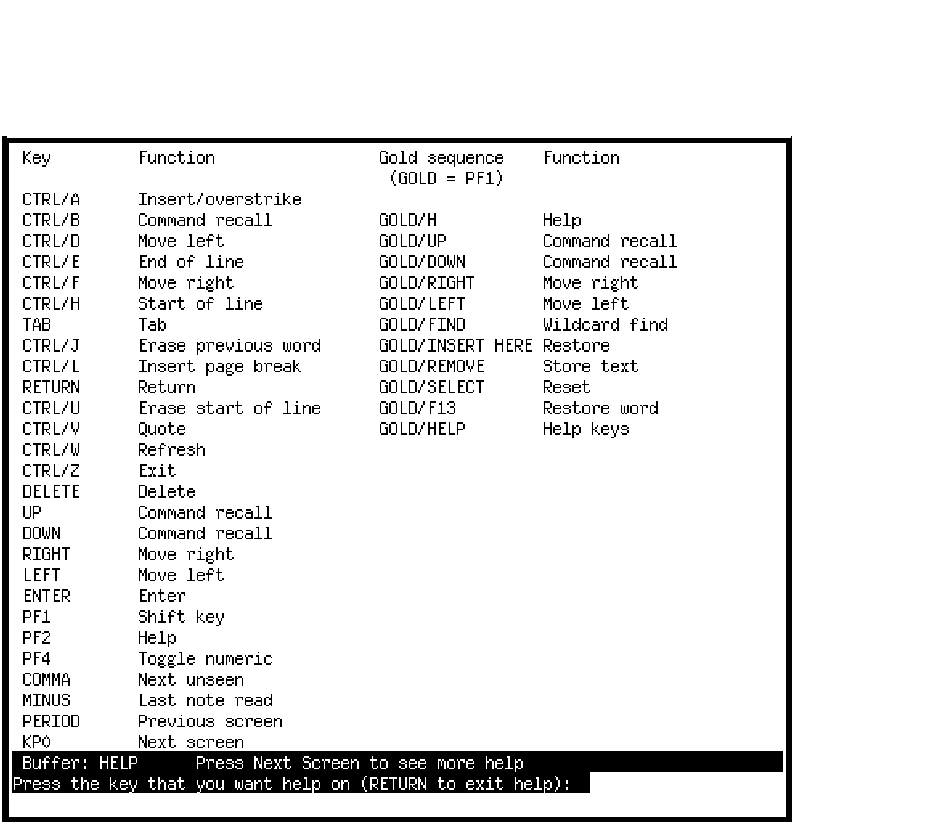
Figure 5-4 VAX Notes Key Definitions, Part 2
The key definitions display may also be generated anytime you are in
Notes mode by pressing GOLD-HELP (that is, the PF1 key followed by the
PF2 or HELP key). The help screens you see will vary depending on your
terminal type and any keys you have defined.
5.7 Opening a Conference
There are two ways to open a conference:
When you open a conference VAX Notes displays the first note you have
not already seen. If you are opening the conference for the first time
you have not read any notes. Therefore the first topic, note 1.0, is
displayed.
5.8 Getting a Directory of Notes
When you are reading a conference you can get a directory of topics, replies, or both using the DIRECTORY command. The following command displays a directory of all topic notes (notes ending in ``.0''):
Notes> DIRECTORY |
To include replies in the directory, specify a range of notes using wildcards:
Notes> DIRECTORY *.* |
or
Notes> DIRECTORY 5.*-8.* |
There are several ways to begin reading notes:
Once you are reading notes there are several ways to navigate forward and back:
A discussion consists of a topic note and all of its replies. To add your own reply you simply position yourself in that discussion, and use the Notes> REPLY command to start up the editor of your choice. If you have not already chosen your default editor, do so now using (for example):
Notes> SET PROFILE/EDITOR=EDT Your profile has been modified |
To add a reply to topic number 5 in the conference you are currently reading:
Notes> 5.n Notes> REPLY |
Typically (depending on your chosen editor), the editor is started and your initial edit buffer contains the note you were just reading. Some VAX Notes editors support split screen operation. In this case one edit buffer displays the note you were just reading while the other buffer displays the new note you are composing.
It is useful to quote portions of the old note to which you are replying in your new note. Used sparingly, it helps others understand exactly what you are talking about. Normally, the quoted material should be indented from the main text and prefixed by one or two arrows, as the following example shows.
>> I want to learn how to write a topic note. >> Can someone please give me the instructions? Just read the next section. It will all be explained there. |
The first two lines contain the quoted material, extracted from the prior note. The reply goes on to give the answer to the question.
When you are satisfied with your reply, exit the editor (usually F10 or CTRL-Z). VAX Notes prompts you for a title and confirms that you want to enter the note in the conference.
To cancel your reply, do one of the following:
Adding a new topic to an existing conference is as easy as adding a reply. Simply use the Notes> WRITE command. VAX Notes starts the editor specified in your profile and gives you a blank editing screen.
When you are satisfied with your text, exit the editor (usually F10 or
CONTROL-Z). VAX Notes prompts you for a title and confirms that you
want to enter the note in the conference. VAX Notes automatically
assigns the next available number and displays the note on your screen.
5.11 Deleting a Note
If you discover later that a note you have written contains a serious error, you may delete it using Notes> DELETE m.n. Here, ``m.n'' is the number of the note you wish to delete.
Unless you are a moderator of this conference, you may delete only
notes that you have written.
5.12 Ending a VAX Notes Session
To leave the conference you are reading, type the following command:
Notes> CLOSE |
Then, to exit the VAX Notes utility entirely:
Notes> EXIT |
You can also press CONTROL-Z in place of the CLOSE and EXIT commands.
Other benefits of OneKey are the following:
OneKey is enabled for your account as follows:
$ DEFINE NOTES$SECTION ONEKEY |
$ DEFINE NOTES$SECTION ONEKEY |
The only changes made to the basic VAX Notes interface are extensions
of the functions of the ENTER and KP, (keypad COMMA) keys. All other
OneKey functions are additions rather than changes to
existing functions.
6.3 The ENTER Key Function
After you have entered Notes, simply press the ENTER key (on the keypad) to read the next note you have not seen.
When you see the message:
No more unseen conferences...Do you want to update all conferences? [Y]: |
Type Y (or the ENTER key) to perform the update;
Type N to not perform the update;
Type X or E or Q to
exit Notes and return to the prompt.
All standard VAX Notes and EVE key definitions remain present.
See Chapter 8, OneKey Reference Manual for additional OneKey key definitions.
6.4 What the ENTER Key Does
In VAX Notes mode, the ENTER and the F20 keys are defined as ``1K-Note'' which is the function for one key reading. If you are using a VAXstation, Mouse Button 3 Down is also defined this way. Pressing any one of these keys does the following:
At the update prompt, use only one keystroke (no return).
Type one of the following characters:
| Char. | Description |
|---|---|
| Y | Starts an update. Be patient - it can take a while to update a lot of conferences. When the update finishes, you are told how many conferences have unseen notes. If there are any, press the ENTER key to open the next conference. |
| N | Leaves you where you are. This may be the last note you read or a directory listing. |
| X | Clears the screen and exits from VAX Notes. |
| E | Clears the screen and exits from VAX Notes. |
What if you want to get out of VAX Notes before you've read everything?
OneKey makes exiting simple and fast. From almost any point (including replying to a note), you can use the fast exit. Press GOLD-F10 (that's the PF1 key, followed by F10). The screen is cleared, and the system prompt appears. You don't have to look at any intermediate screens. (The F10 key is marked ``Exit'' on most LK201 keyboards.)
If you don't have an F10 key, GOLD-E is also ``fast exit''. However,
GOLD-E is only available if you have a Notes>
prompt (not when you're replying or writing).
6.6 Skipping Notes Without Reading Them
In Notes mode, you press the KP4 key (the keypad key marked `4') to skip reading the rest of the unread notes in the current conference and go directly to the next conference that has unread notes. KP4 does NOT mark any unread notes ``seen''. You can eventually come back and read all of them. Of course, if you have only one conference with unread notes, using KP4 keeps returning you to that conference.
If you want to skip the rest of the replies in a particular discussion and mark them as ``seen'', use Keypad Comma key (KP,).
If you want to mark all remaining unread notes (topics and replies) in a conference as having been ``seen'', use the following VAX Notes command:
Notes> SET SEEN |
The key sequence GOLD-KP4 attempts the impossible going back to the
last seen note in the previously-seen conference. For example, you
might inadvertently OneKey to the next conference and want to come
back. Try GOLD-KP4. OneKey doesn't always know how to get back, but it
makes its best attempt.
6.8 Getting Help on OneKey
You can get help on the OneKey extensions to the VAX Notes keypad by pressing the HELP or PF2 key on your keyboard. VAX notes generates a display such as the one shown in Figure 6-1.
Figure 6-1 OneKey/VAX Notes Keypad Help Screen
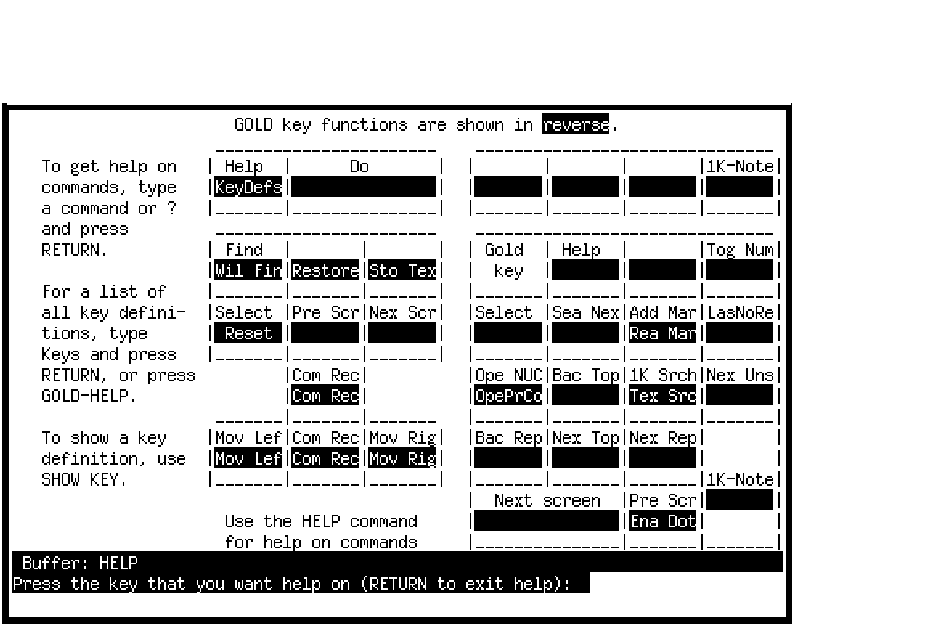
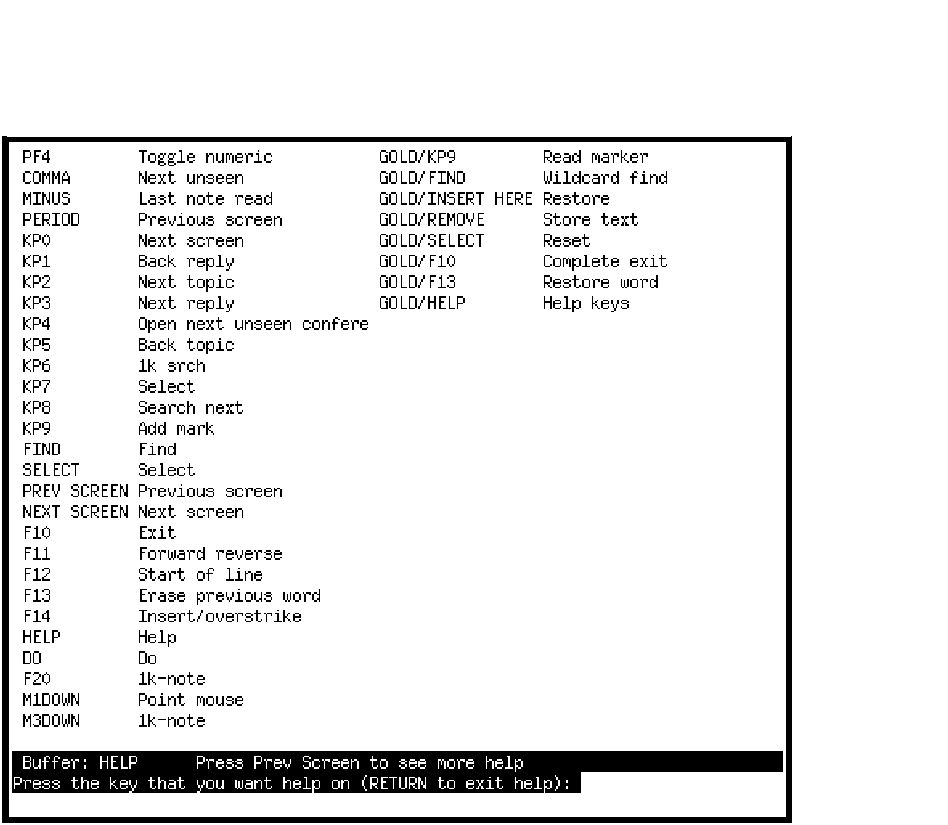
When the keypad diagram is on display, type ``keys'' to get a list of key definitions as shown in Figure 6-2 and Figure 6-3.
The key definitions display may also be generated anytime you are in Notes mode by pressing GOLD-HELP (that is, the PF1 key followed by the PF2 or HELP key. Please refer to Chapter 8, the OneKey Reference Manual, for more information on OneKey functions.
Figure 6-2 OneKey/VAX Notes Key Definitions, part 1
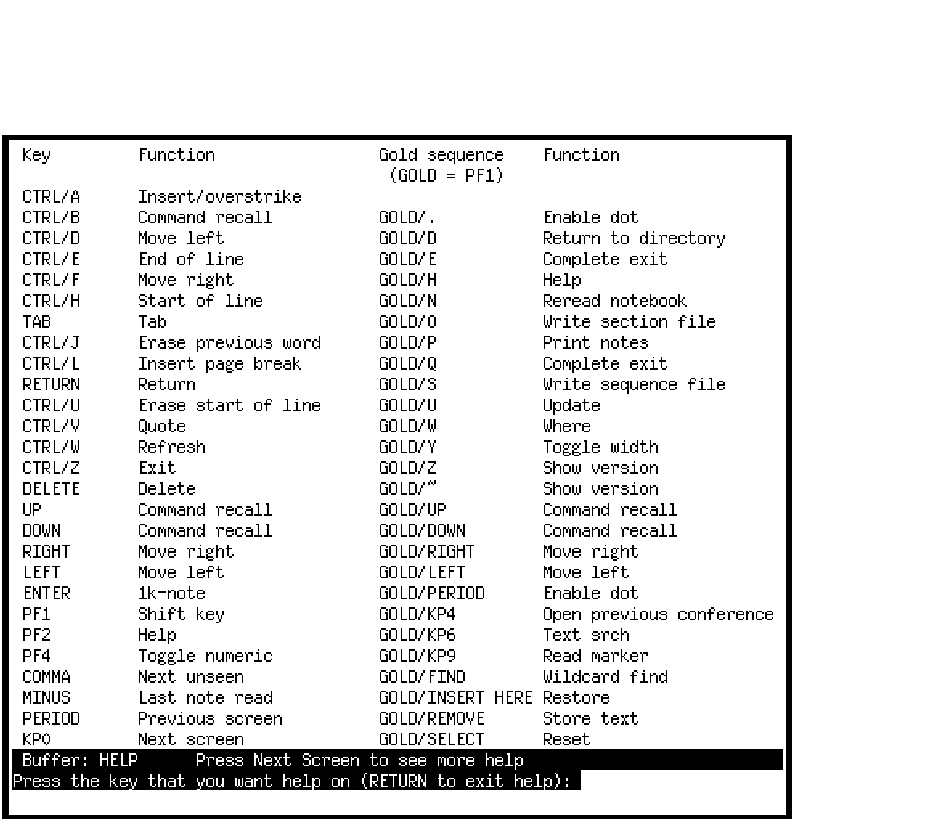
Figure 6-3 OneKey/VAX Notes Key Definitions, part 2
| Previous | Next | Contents | Index |