| Previous | Contents | Index |
This chapter provides reference material on the editors available within VAX Notes.
There are five editors available. Brief descriptions of them are given in Table 12-1. More detailed descriptions of each of them are given in later sections of this chapter.
All screen images shown in this chapter were obtained with OneKey enabled. Because of differences in terminal types and software versions, the screens shown here may not be exactly the same on your display.
| EVE | This is the basic TPU-based editor covered in the VAX Notes Quick Reference Card. |
| EDT | This is the standard VAX Notes editor with line, keypad, and nokeypad modes. EDT is also available on some Personal Computers and PDP-11s. |
| TPU/EDT | This is the advanced TPU based editor with split screen and a keypad matching EDT but without the line and nokeypad modes. |
| TPU/WPS | This editor is also TPU-based with a keypad similar to WPS and WPS-Plus. |
| TECO | This is a classic editor available on may platforms. |
You can determine the editor currently selected by executing the following command:
Notes> SHOW PROFILE |
Change your editor at any time using the SET PROFILE command in Notes:
Notes> SET PROFILE/EDITOR=keyword |
Select the TPU-based editor known as EVE using the following Notes command:
Notes> SET PROFILE/EDITOR=EVE |
The EVE editor is documented on the VAX Notes Quick Reference Card
(AV-G101A-TE). All of the information on this card is also available
on-line using the help functions built into TPU.
12.3.2 Getting Help on EVE
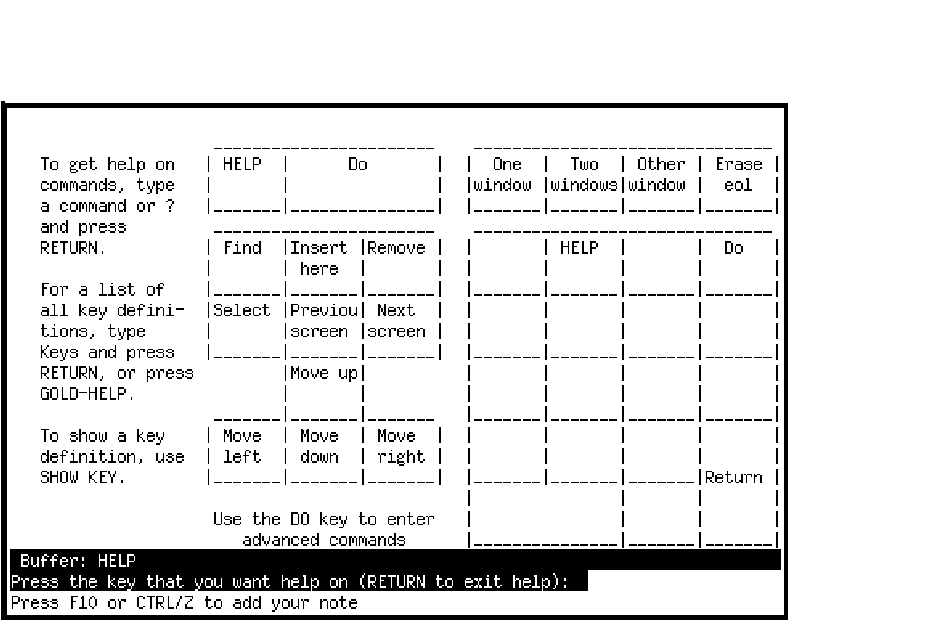
Pressing the HELP or PF2 keys while in EVE will generate a display such as the one shown in Figure 12-1, showing the layout of keys on the keypad.
Figure 12-1 EVE Editor Keypad Layout (w/OneKey Extension)
When the keypad diagram is on display, you can type keys and get a list of key definitions as shown in Figure 12-2.
Figure 12-2 EVE Editor Key Defintions (w/OneKey Extensions)
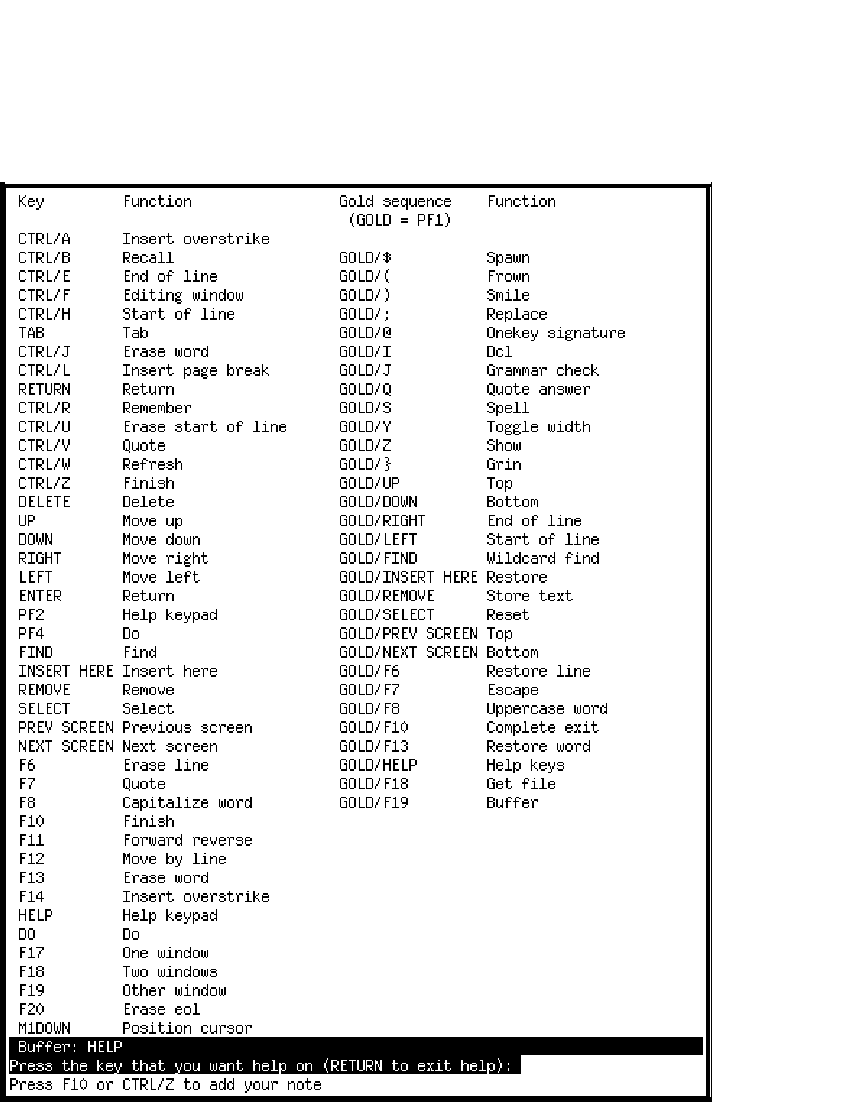
The key definitions display may also be generated anytime you are in the EVE editor by pressing GOLD-HELP.
To enable GOLD key functions, press the DO key and type the string
SET GOLD followed by RETURN. Then press the key which
is to become the ``GOLD'' key for the session.
12.4 Editing with EDT
There are actually two EDT-style editors:
Select the Callable EDT editor using:
Notes> SET PROFILE/EDITOR=(EDT,CALL) |
Select the TPU/EDT editor using:
Notes> SET PROFILE/EDITOR=EDT |
You can distinguish between the two editors by the ``look and feel'' of their screens.
If you are new to EDT-style editors or have no preference between
callable EDT and TPU/EDT, we recommend that you try TPU/EDT.
12.4.3 Entering or Exiting Screen Mode in Callable EDT
If you get a * prompt when you first enter the callable EDT editor, you are in line mode. To enter screen mode, type CHANGE (or just a C) followed by RETURN . You can now type text, or use the arrow and numeric keypad keys to move around in your text and manipulate it.
To return to line mode, press CTRL/Z. You may then type
EXIT to exit the editor, QUIT to
abandon the edits you have made, or any other line-mode command.
12.4.4 Getting Help on EDT or TPU/EDT
Pressing the HELP or PF2 keys while either Callable EDT or TPU/EDT are active will generate a display showing the layout of keys on the keypad.
The screen images captured in Figures 12-3 through 12-6 show what help was available within Callable EDT and TPU/EDT at the time this document was written.
Figure 12-3 shows the keypad help screen for Callable EDT.
Figure 12-4 shows the keypad help screen for TPU/EDT.
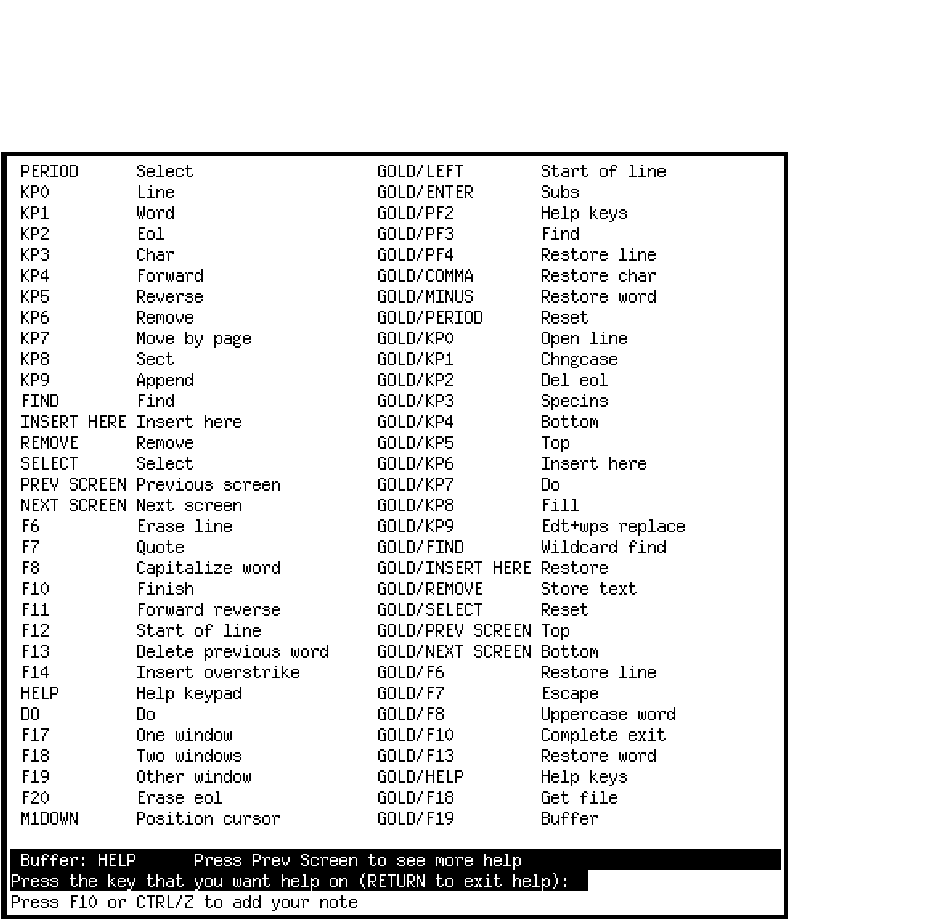
When the keypad diagram is on display in TPU/EDT, you can type keys and get a list of key definitions as shown in Figures 12-5 and 12-6.
The TPU/EDT key definitions display may also be generated anytime you are in edit mode by pressing GOLD-HELP (that is, press the PF1 key followed by the PF2 or HELP key).
Figure 12-3 Callable EDT Editor Keypad Layout
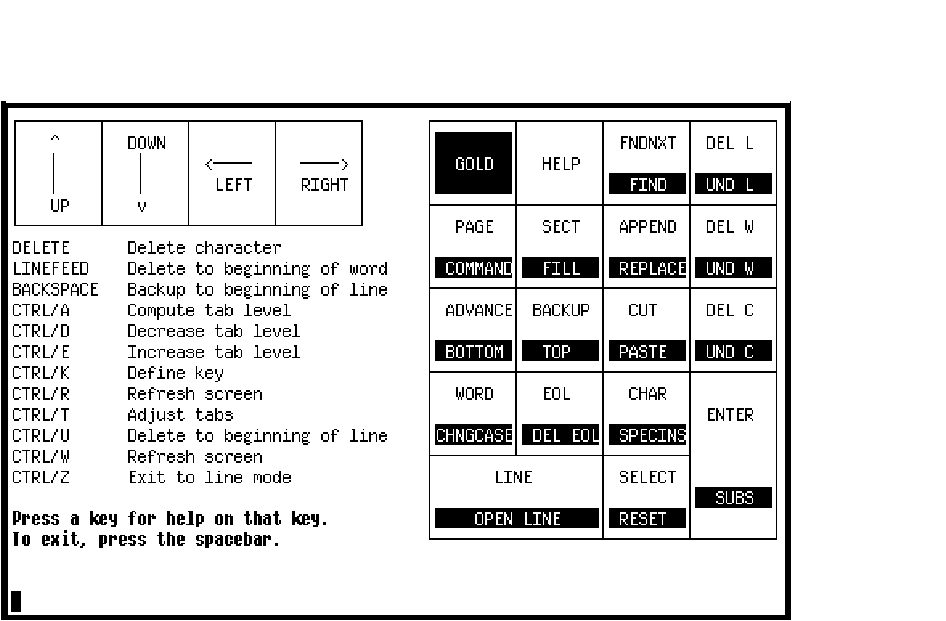
Figure 12-4 TPU/EDT Editor Keypad Layout (w/OneKey Extensions)
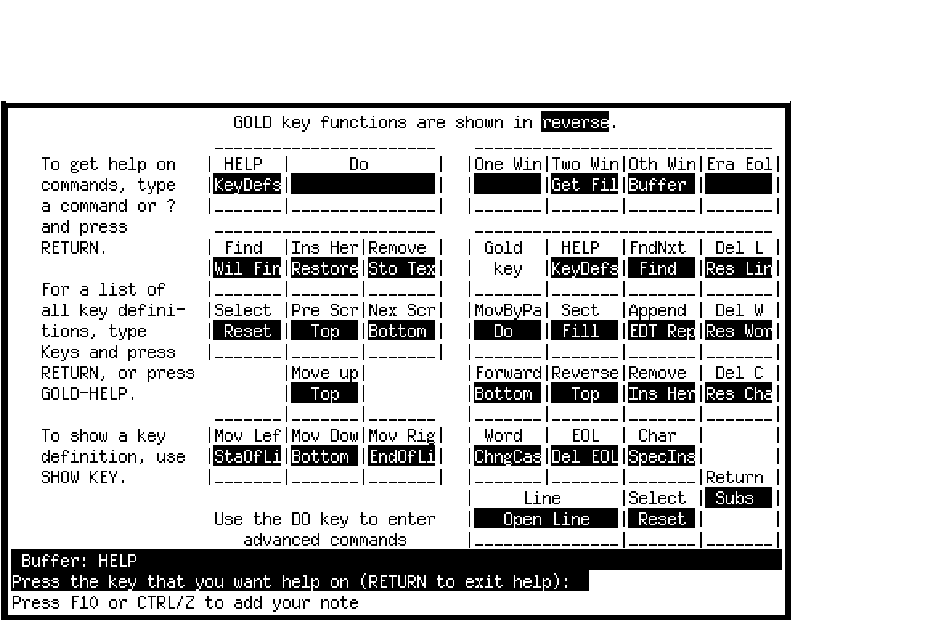
Figure 12-5 TPU/EDT Editor Key Defintions (w/OneKey Extensions), part 1
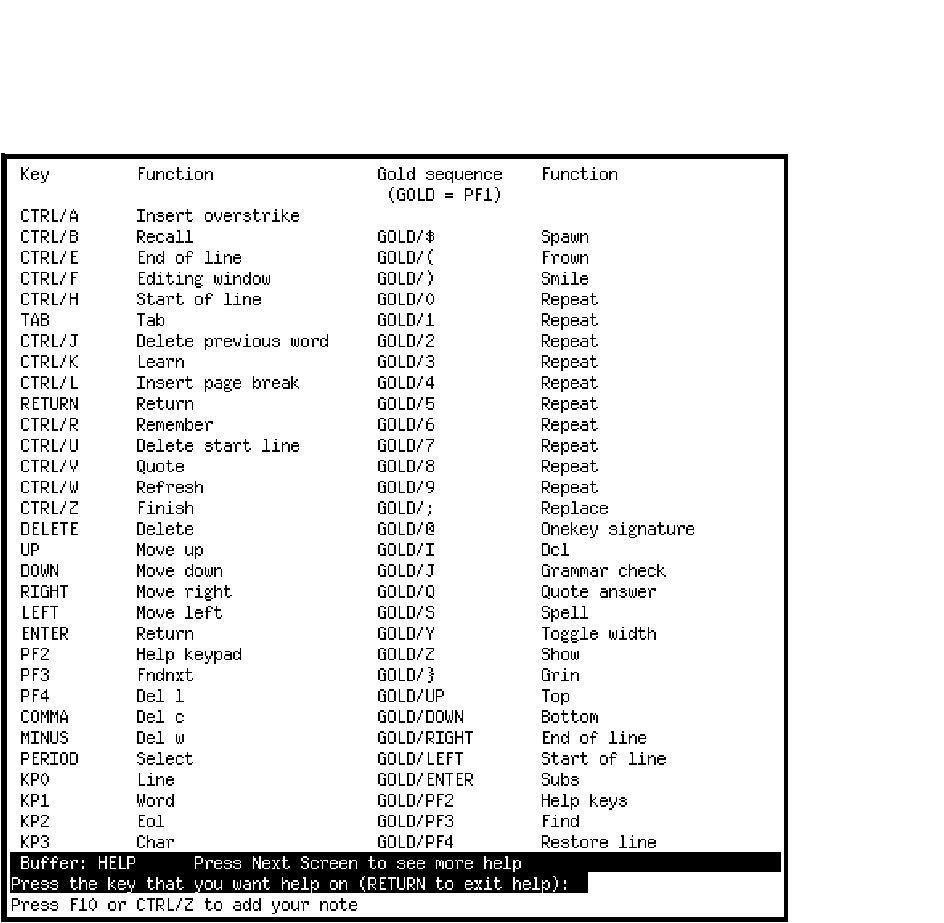
Figure 12-6 TPU/EDT Editor Key Defintions (w/OneKey Extensions), part 2
Select the WPS editor by using:
Notes> SET PROFILE/EDITOR=WPS |
Pressing the HELP or PF2 keys while in WPS will generate a display such as the one shown in Figure 12-7, defining the layout of keys on the keypad.
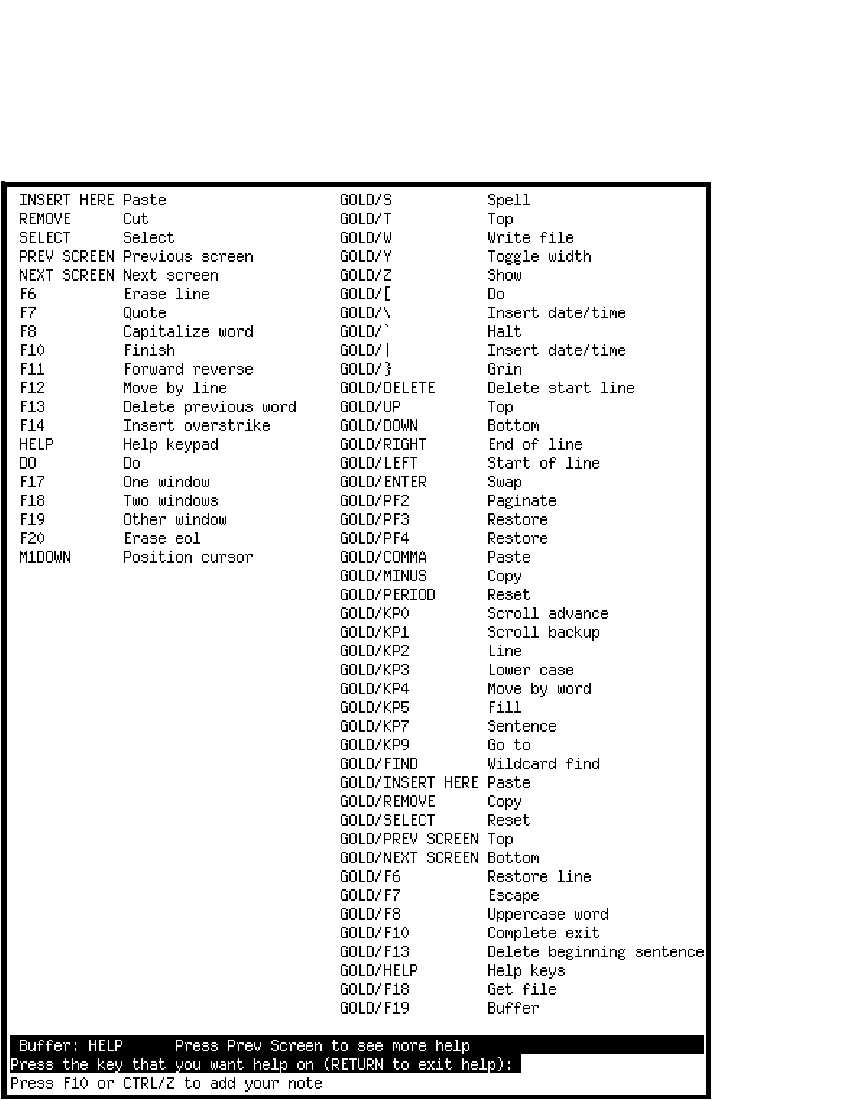
When the keypad diagram is on display, you can type keys and get a list of key definitions as shown in Figures 12-8 and 12-9.
The key definitions display may also be generated anytime you are in edit mode by pressing GOLD-HELP.
Figure 12-7 WPS Editor Keypad Layout (w/OneKey Extensions)
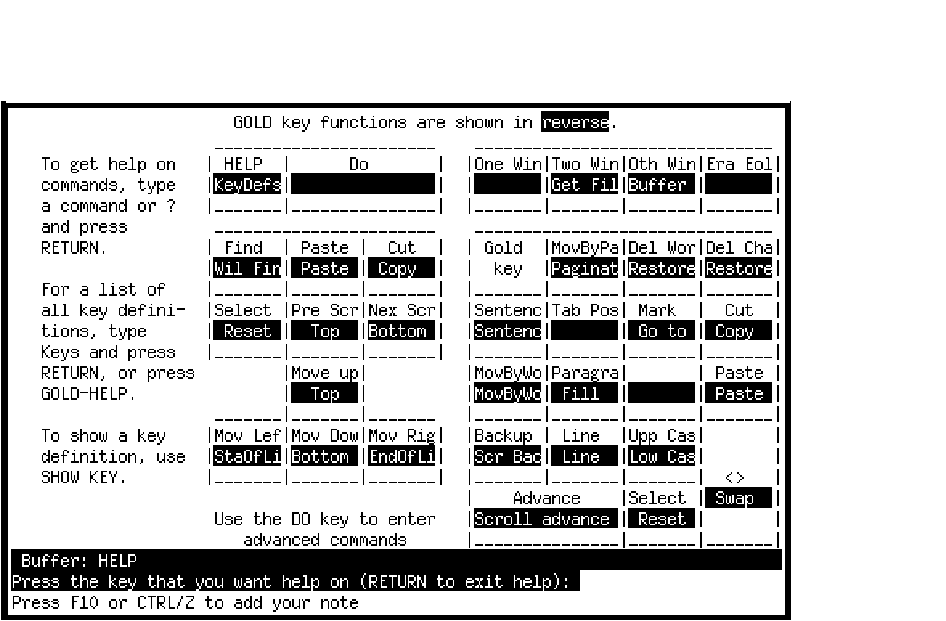
Figure 12-8 WPS Editor Key Definitions (w/OneKey Extensions), part 1
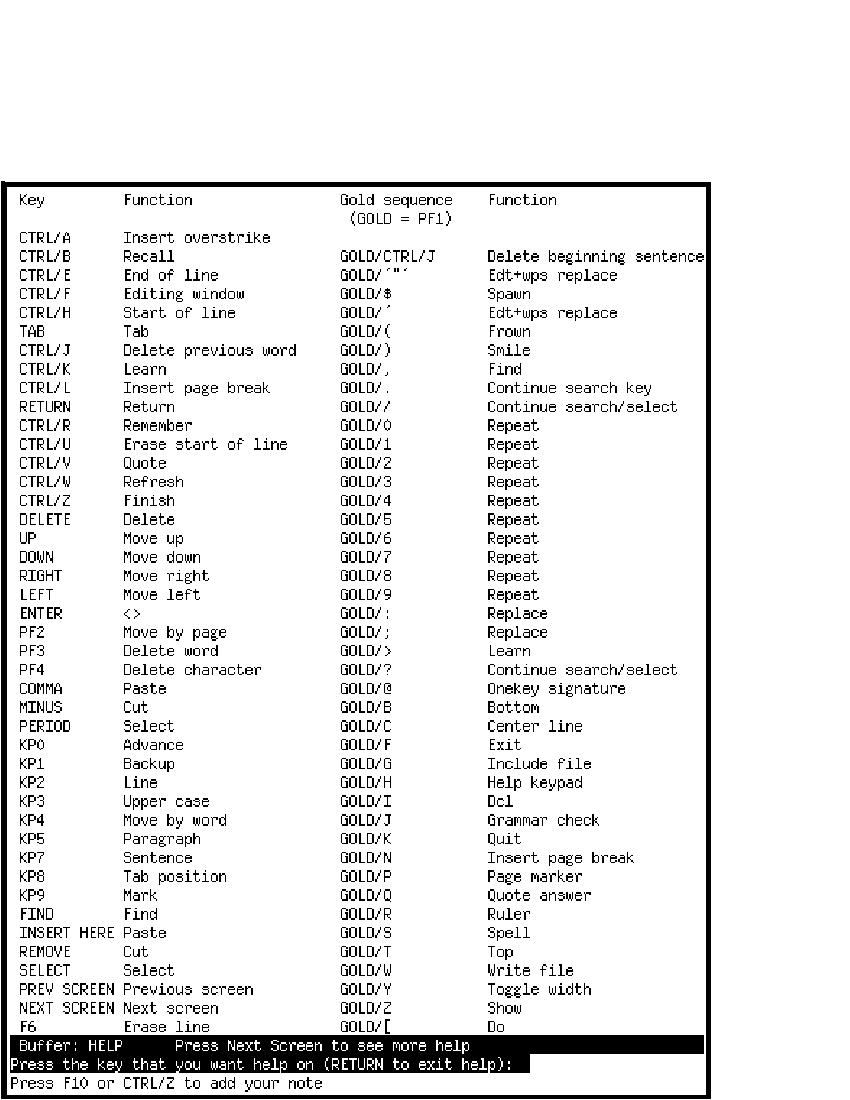
Figure 12-9 WPS Editor Key Definitions (w/OneKey Extensions), part 2
Select the TECO editor by using:
Notes> SET PROFILE/EDITOR=TECO |
You must be kidding!
All kidding aside, there is on-line help for TECO, but if you are not already familiar with TECO then you should probably not try to learn it by reading the on-line instructions.
TECO is a command-driven editor. As such, TECO does not provide a native-mode screen editing facility, although TECO wizards have written TECO macros which emulate a screen-based editor.
The TECO prompt is the single character *. TECO commands are usually single characters followed by an <ESC>. TECO commands are not executed until two <ESC>'s are typed together. Thus a string of commands may be executed together by following each one with a single <ESC> and the last one with two <ESC>'s.
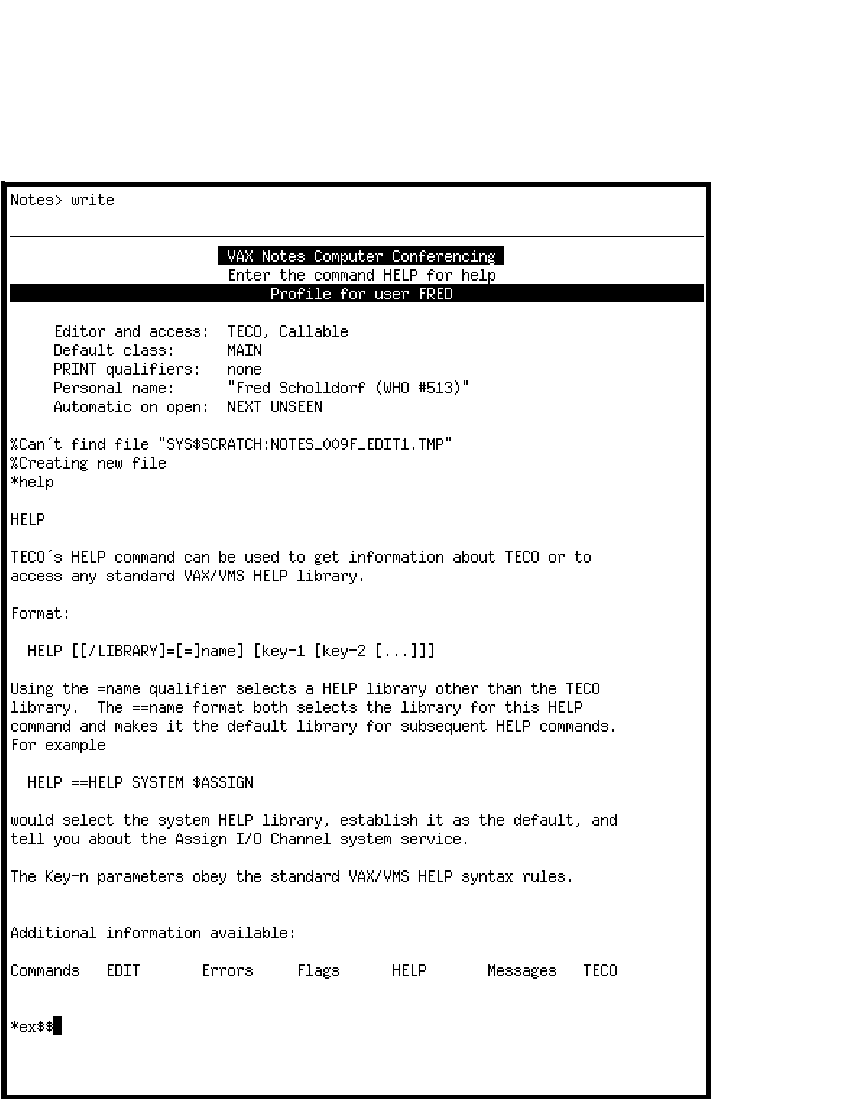
Help may be obtained within TECO by entering the special command help followed by a carriage return. A typical TECO session startup is shown in Figure 12-10.
Figure 12-10 TECO Startup/Help
To exit from TECO, type EX followed by two
<ESC>'s. The <ESC> character can also be generated by
typing CTRL-[ (Control-Left-Square-Bracket) on most keyboards. Note
that TECO always echoes the <ESC> character as a
$.
12.6.3 Exiting TECO
Exit from TECO by typing the following command (in response to the * prompt). Each `$' represents one <ESC> character:
*ex$$ |
First of all ---Don't Panic!
There is usually a reasonable explanation for everything, and there are many people on the system eager to help you.
Go back over the instructions to see if you have overlooked something. Perhaps the documentation is wrong. (After all, every word of it was written by a human.) Try finding another reference to the what are trying to do and compare notes. If you do find a documentation error please notify us using the instructions below.
If the problem persists, try to collect as much information about it as
possible. Do other commands fail in the same way? Are the symptoms the
same every time? Write down the exact sequence of things you are trying
to do and the system responses. Include the exact text of any error
messages. This information will be very helpful to the people trying to
help you.
13.2 Where to go for help
13.2.1 Can't Access the System
You are completely confused or you can't access the system at all. DECUServe has a telephone answering machine for voice messages: (978)952-6957. All 978 based telephone numbers will be changed to new unknown numbers on or about 16-Oct-1998.
Please leave your DECUS membership number, DECUServe username, your
name, both day and evening telephone numbers and a description of the
problem you are having or the assistance needed.
13.2.2 Account or Subscription Problems
You can reach the system using one of the available methods but you can't log in,or you can log in but you are having a general problem with your account.
| Send VMS MAIL to: | @ASSIST |
| Send VMS MAIL to: | PROBLEMS or DECUSERVE |
| Send Internet mail to: | ASSIST@eisner.decus.org or |
| PROBLEMS@eisner.decus.org | |
| DECUSERVE@eisner.decus.org |
You may also log in to the DECUServe PROBLEMS account (no password is
necessary) to request assistance. Telnet or any dial-in line (including
(800)-521-8950) may be used.
13.2.3 INTERNET Problems
Users with questions about DECUServe access to the Internet should post
them to the INTERNETWORKING VAX Notes conference. A collection of
Internet experts routinely monitor this conference and answer posted
queries.
13.2.4 Business or Policy Issues
If you would like to send mail to representatives of the DECUServe Executive Committee, you can:
| Send VMS MAIL to: | XCOM or EXEC |
| Send Internet mail to: | XCOM@eisner.decus.org or |
| EXEC@eisner.decus.org |
To send electronic mail to the DECUS Board of Directors you may:
| Send VMS MAIL to: | BOARD |
This facility is not available from Internet Mail.
To send mail to representatives of DECUS Canada, you can:
| Send VMS MAIL to: | DECUS_CA |
| Send Internet mail to: | DECUS_CA@eisner.decus.org |
If you would like to update information in your DECUS and DECUServe file (such as your address or telephone number), you can:
| Send VMS MAIL to: | INFO_CHANGE |
| Send Internet mail to: | INFO_CHANGE@eisner.decus.org |
This information is forwarded to the DECUS office, as well as DECUServe.
You can get information about your DECUServe account expiration, and receive a renewal invoice if you wish, by typing the following command:
$ EXPIRY |
If you (or your friends) need a DECUServe application, you can obtain one on-line on the system, or by VMS MAIL or Internet mail. Send a mail message to one of the following addresses depending on where you are:
| Send VMS MAIL from DECUServe to: | APPLICATION |
| Send VMS MAIL from DCS to: | DECUSV::APPLICATION |
| Send Internet mail to: | APPLICATION@eisner.decus.org |
You will get back, by return mail, an application form. If you include the string ps or postscript in the mail subject line, you get a PostScript file. If you include ln3 or ln03 in the subject line, you get an LN03 format file. Otherwise, you get a flat text file. You can get 1 application form per mail message. No particular text is required in the ``body'' of the message; only the subject is important.
Information about joining DECUServe is freely available to your friends. They may log in to the INFORMATION account (no password is necessary). They may use any modem dial-in line (including (800)-521-8950) or reach DECUServe using Telnet on the Internet.
See Chapter 9 for information about Telnet and Internet mail to DECUServe.
| Index | Contents |